TPM 2.0 Firmware Upgrade Guide
Prerequisite: Before beginning, back up any crucial data. You should also know how to access your BIOS settings.
Step-by-Step Instructions
- Download Firmware
- Download the file
authikey3353.zip. -
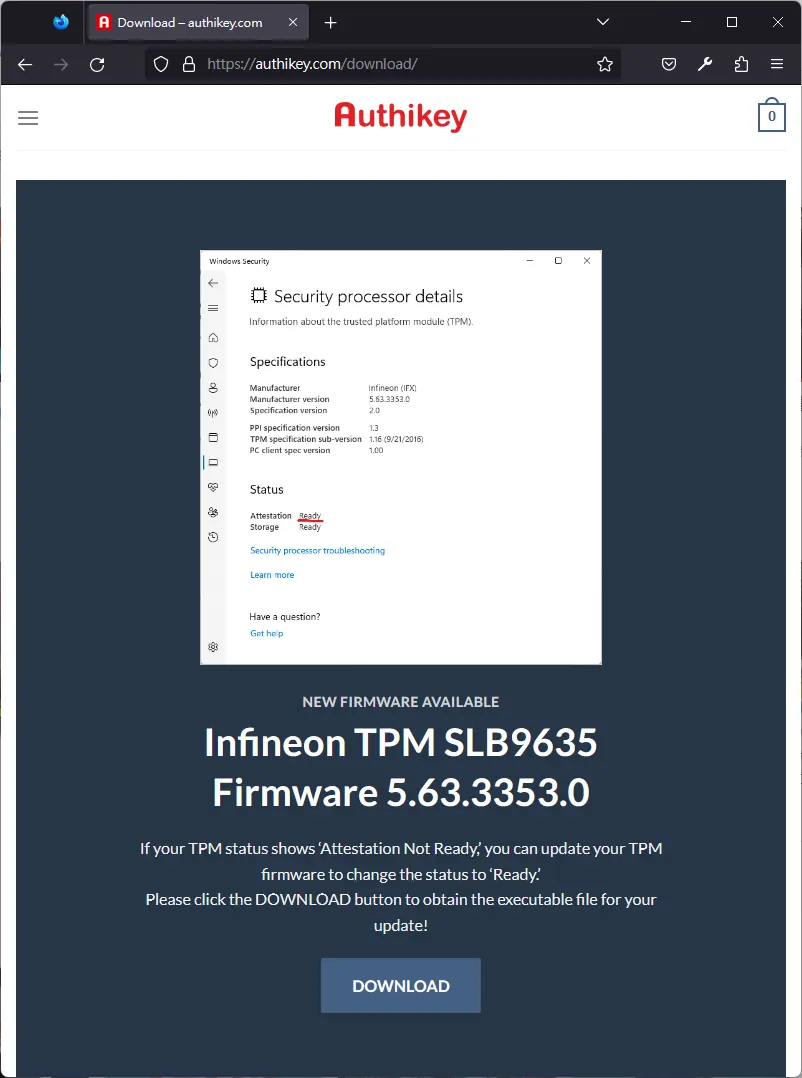
- Download the file
- Extract Files
- Once the download is complete, locate the
authikey3353.zipfile. -
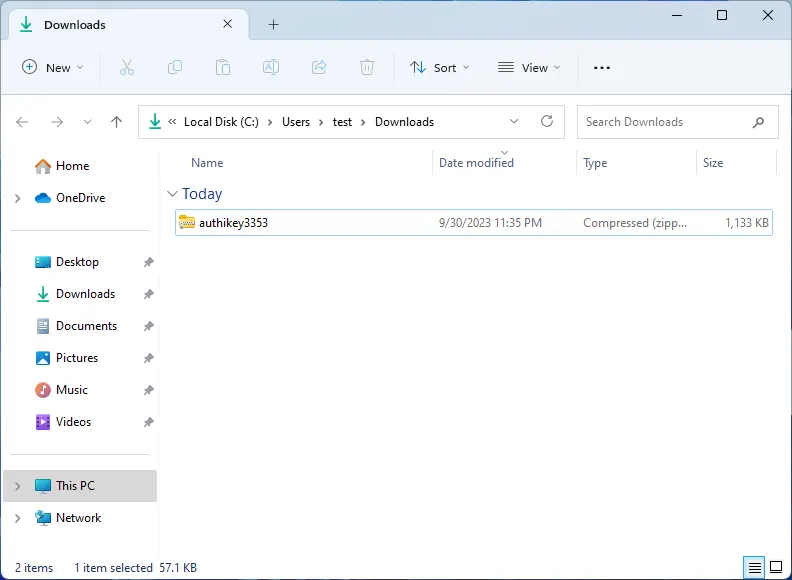
- Extract the contents, specifically the
3353exefolder, to your desktop. -
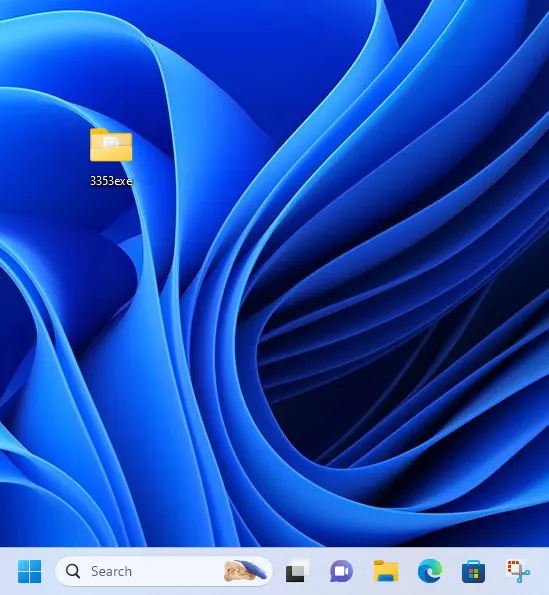
- Once the download is complete, locate the
- Modify BIOS Settings
- Restart your computer and access your BIOS settings.
- Find the
Trusted Computingoption and disable it. -
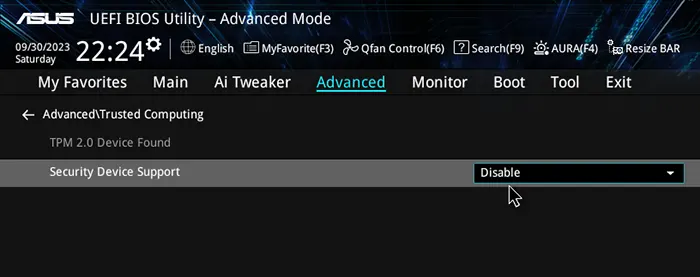
- Boot into Windows 11
- Save the changes made in the BIOS and reboot your computer to Windows 11.
- Prepare for Update
- Locate and open the
3353exefolder on your desktop.
- Locate and open the
- Initiate Firmware Update
- Find the
update.batfile. - Right-click on it and choose
Run as administrator. -
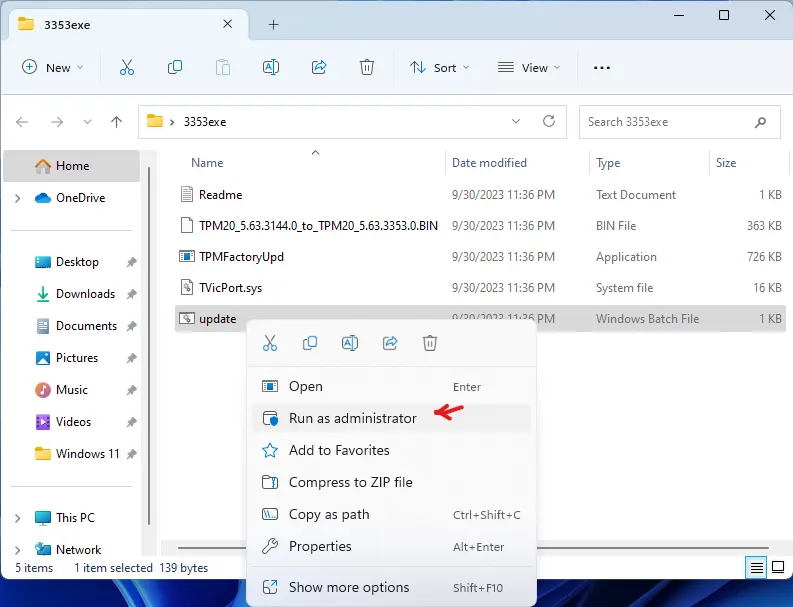
- Find the
- Firmware Update Process
- A dialog box will surface.
-
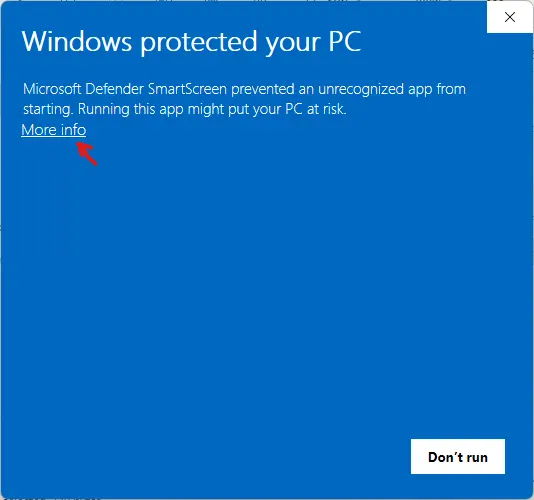
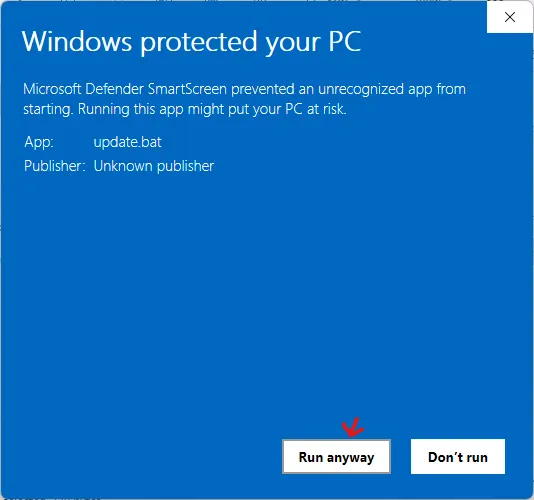
- Allow the update to run.
-
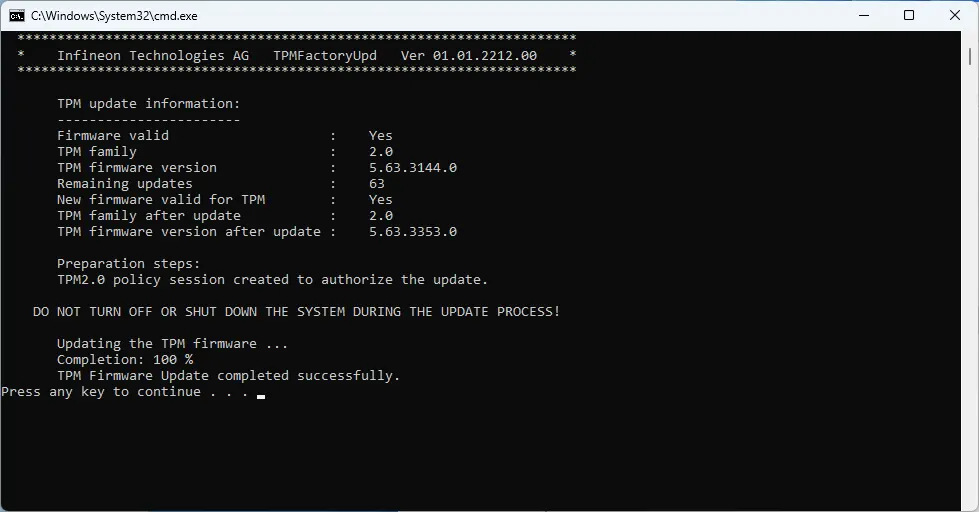
- A pop-up window will appear, indicating the Infineon SLB9665 firmware update process.
-
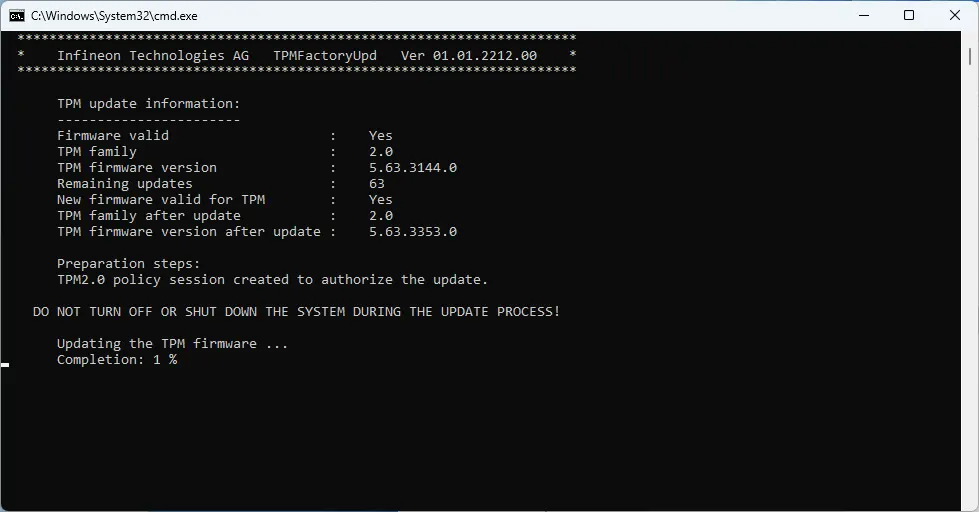
- Wait for the update to complete.
-
- Troubleshooting
-
If the update does not initiate successfully, verify that:
Trusted Computingremains disabled in the BIOS.- You executed
update.batwith administrative rights.
-
If the update does not initiate successfully, verify that:
- Reconfigure BIOS Settings
- Reboot your computer and re-enter the BIOS settings.
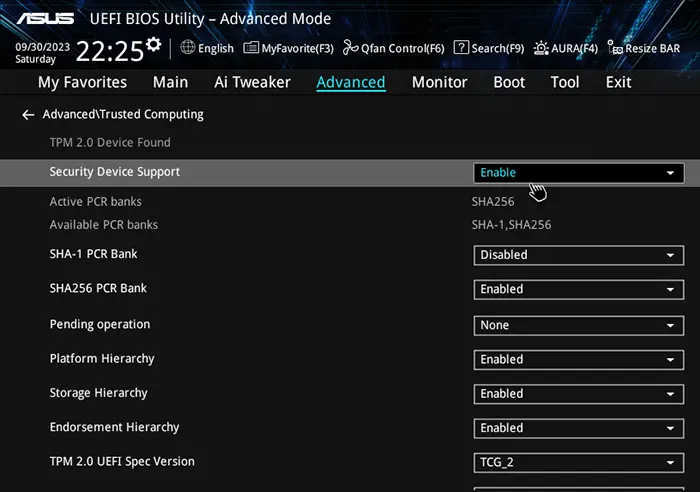
- Enable
Trusted Computing. - Save and reboot, then access the BIOS once more to verify Security Device Support is enabled and details are visible.
-
- Save any changes and restart, launching into Windows 11.
- Verification
- Once you are back in Windows 11, open the Settings app.
- Click on
Privacy & security. - Scroll down to the
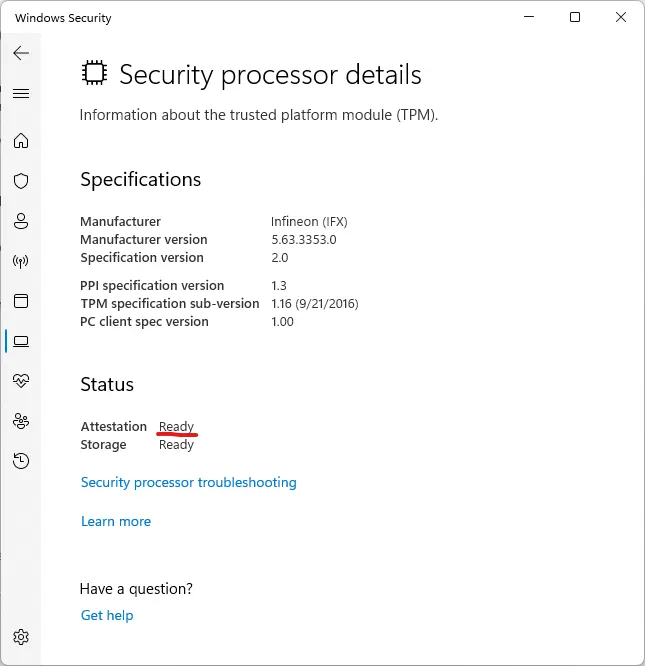
Device securitysection and click onSecurity processor. - Under
TPM status, make sure that the status isAttestation Ready. -
Important Reminders
- Always connect your computer to a dependable power source during firmware updates to avoid potential interruptions.
- Post-upgrade, you may delete the
3353exefolder from your desktop.
Update not working?
Email us with what you see on screen and your motherboard model — we'll help you get the firmware updated.